

How to Undo a Pin on Pinterest
Introduction
Pinterest is one of the most popular visual discovery platforms where users save ideas, images, and inspiration into boards. But sometimes you may accidentally save the wrong pin or want to clean up your boards.
If you are searching for how to undo a pin on Pinterest, remove saved pins, or manage your boards properly, this guide will show you everything step by step in a simple way.
What Does “Undo a Pin” Mean on Pinterest?
Before learning the steps, it’s important to understand what “undo a pin” actually means.
On Pinterest, you cannot technically “undo” a pin like an undo button. Instead, you can:
- Unsave a pin → Remove it from your board
- Delete a pin → Permanently remove a pin you created
- Remove a pin from board → Take it out of a specific board
Each action works differently depending on what you want to do.
How to Undo a Pin on Pinterest (Mobile App)
If you are using the Pinterest app, follow these steps:
- Open the Pinterest app
- Go to your profile (bottom right)
- Open the board where the pin is saved
- Tap on the pin you want to remove
- Tap the three dots (⋯) in the corner
- Select “Delete Pin” or “Remove from board”
- Confirm your action
👉 The pin will be removed immediately.
How to Make Money on Pinterest
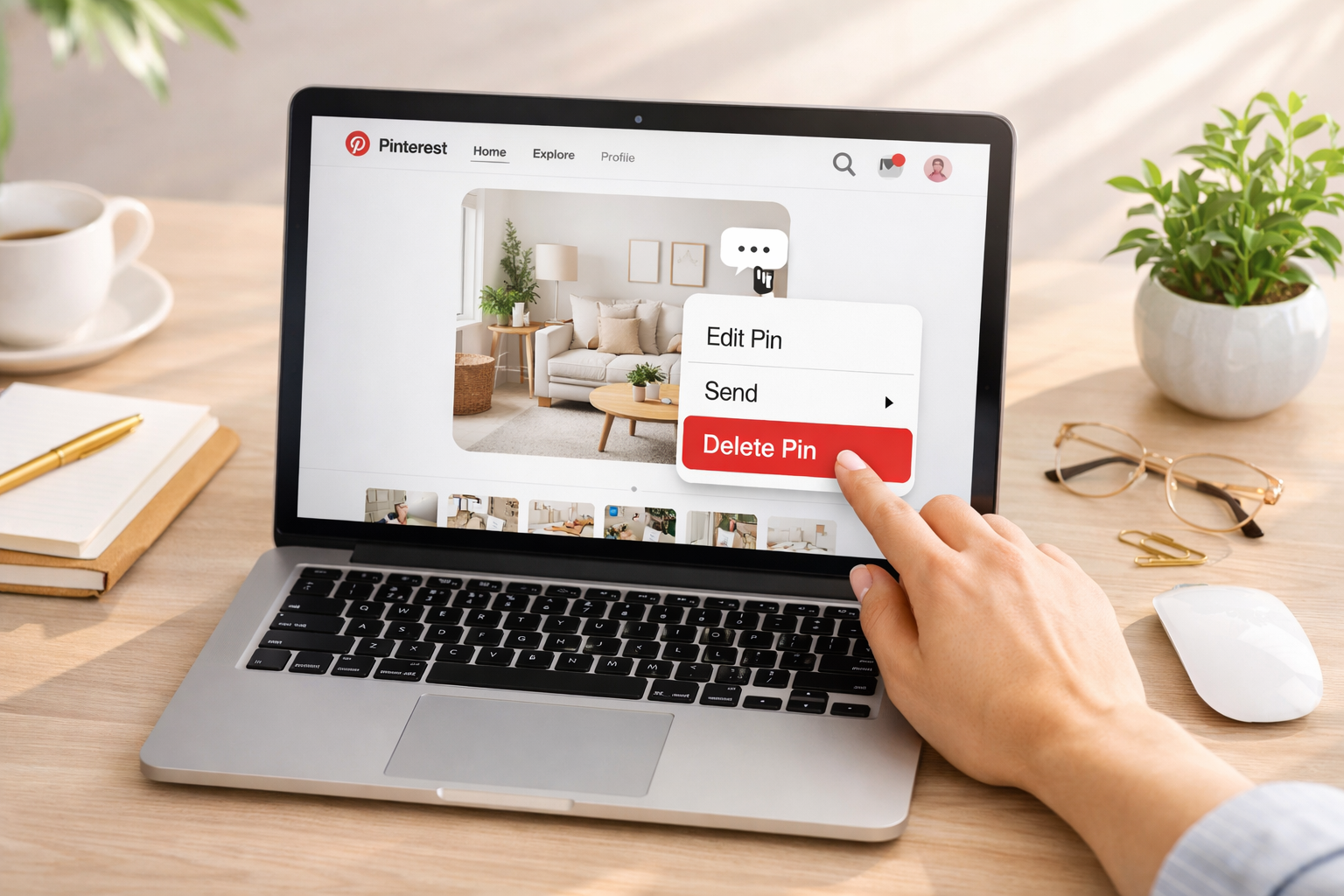
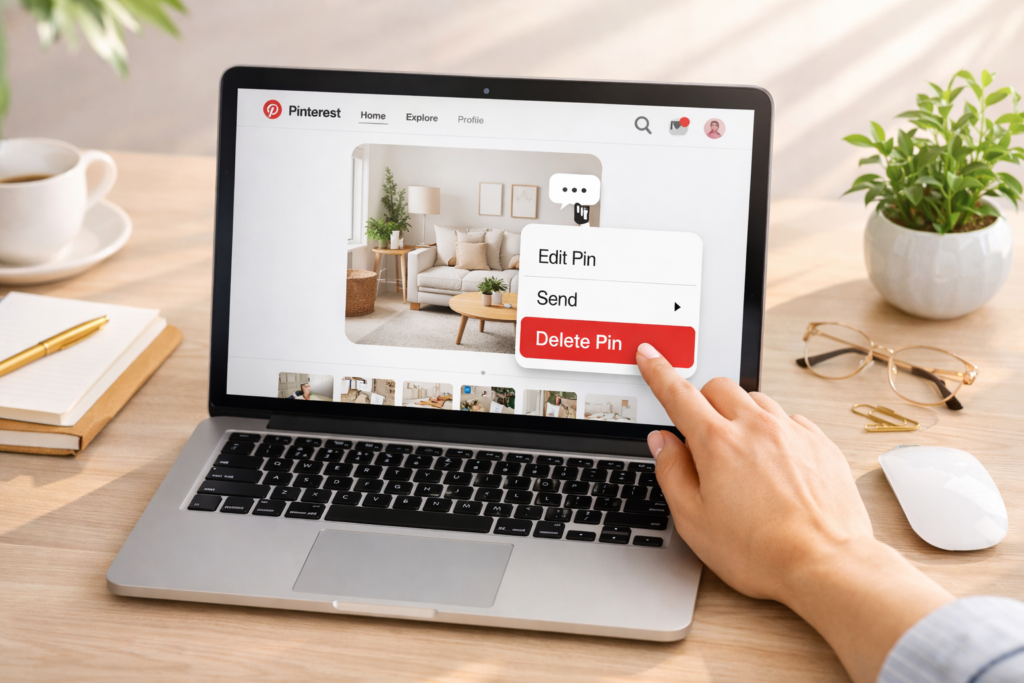
How to Undo a Pin on Pinterest (Desktop)
If you are using a laptop or computer:
- Go to Pinterest website and log in
- Click your profile icon
- Open the board containing the pin
- Hover over the pin
- Click the three dots (⋯)
- Select Delete Pin
- Confirm deletion
How to Unsave a Pin on Pinterest
If you saved someone else’s pin and want to remove it:
- Open the pin
- Click the Saved button (it will be highlighted)
- Click it again to unsave
- The pin will disappear from your board
👉 This is the easiest way to undo a saved pin.
How to Remove Multiple Pins at Once
If you want to clean your board quickly:
- Open your board
- Click Organize
- Select multiple pins
- Click Delete or Move
- Confirm action
Difference Between Unsave, Delete, and Remove Pin
Understanding this is very important:
- Unsave Pin → Removes pin from your board only
- Delete Pin → Permanently removes your created pin
- Remove Pin from Board → Moves or deletes from a specific board
How to Delete a Pinterest Board
If you want to remove everything:
- Go to your profile
- Open the board
- Click edit (pencil icon)
- Scroll down
- Click Delete Board
- Confirm
⚠️ Warning: This deletes all pins inside the board permanently.
How to Delete a Pinterest Account
If you want to close your account:
- Open settings
- Go to Account Settings
- Scroll down
- Select Deactivate or Close Account
- Confirm with password
👉 Your account may be recoverable for a short period before permanent deletion.
Common Pinterest Problems (Quick Fixes)
Pinterest not scrolling?
- Clear cache
- Update app
- Restart device
Pinterest not loading?
- Check internet
- Try different browser
- Log out and login again
Violation notice?
- Check Pinterest guidelines
- Remove restricted content
- Appeal if needed
How to Post on Pinterest
- Click “+” button
- Select “Create Pin”
- Upload image or video
- Add title and description
- Add keywords
- Choose board
- Publish
How to Use Pinterest for Beginners
- Create a free account
- Follow your interests
- Save pins into boards
- Search ideas using keywords
- Create your own pins
How to Make Money on Pinterest
You can earn from Pinterest using:
1. Affiliate Marketing
Promote products and earn commission.
2. Digital Products
Sell ebooks, templates, or guides.
3. Blog Traffic
Send traffic to your blog and earn ad revenue.
4. Printables (Etsy)
Sell downloadable products.
5. Brand Deals
Get paid for sponsored pins.
How to Use Pinterest for Business
- Create business account
- Add website
- Use keywords in pins
- Post regularly
- Track analytics
SEO Tips for Pinterest
To grow faster:
- Use keywords in titles
- Write detailed descriptions
- Use vertical images
- Create multiple pins per idea
- Stay consistent
Frequently Asked Questions
.1. How do I undo a pin on Pinterest?
To undo a pin, open the pin, tap the three dots (⋯), and select “Delete” or “Remove from board.” This will instantly remove it from your saved board.
2. How do I delete a pin on Pinterest?
You can delete a pin by opening it and clicking the three dots menu, then selecting delete. If it’s your own pin, it will be permanently removed.
3. How do I unsave a pin on Pinterest?
Open the pin and tap the “Saved” button again to unsave it. The pin will disappear from your board but still exist on Pinterest.
4. Can I recover a deleted pin on Pinterest?
No, once a pin is deleted it cannot be recovered. Make sure you really want to remove it before confirming deletion.
5. What is the difference between delete and unsave on Pinterest?
Unsave only removes the pin from your board, while delete permanently removes a pin you created. Both actions are different and not reversible.
6. How do I remove multiple pins on Pinterest?
Open your board, click “Organize,” select multiple pins, and delete them together. This is the fastest way to clean up your boards.
Conclusion
Undoing a pin on Pinterest is simple once you understand the difference between unsave, delete, and remove actions. With proper account management and SEO strategy, Pinterest can also become a powerful platform for traffic and income.